How to check when your data was last refreshed

When to use this
Transactions you posted in Business Central today aren't showing in the report.
The numbers look out of date.
You want to confirm the scheduled refresh ran before relying on the figures.
Why it matters
Business Central Insights reports don't read live from Business Central. The data is copied into the Power BI semantic model on a schedule, usually overnight, so the report shows Business Central as it was at the last refresh. Anything posted after that will appear after the next refresh.
Where to find the last refreshed date and time
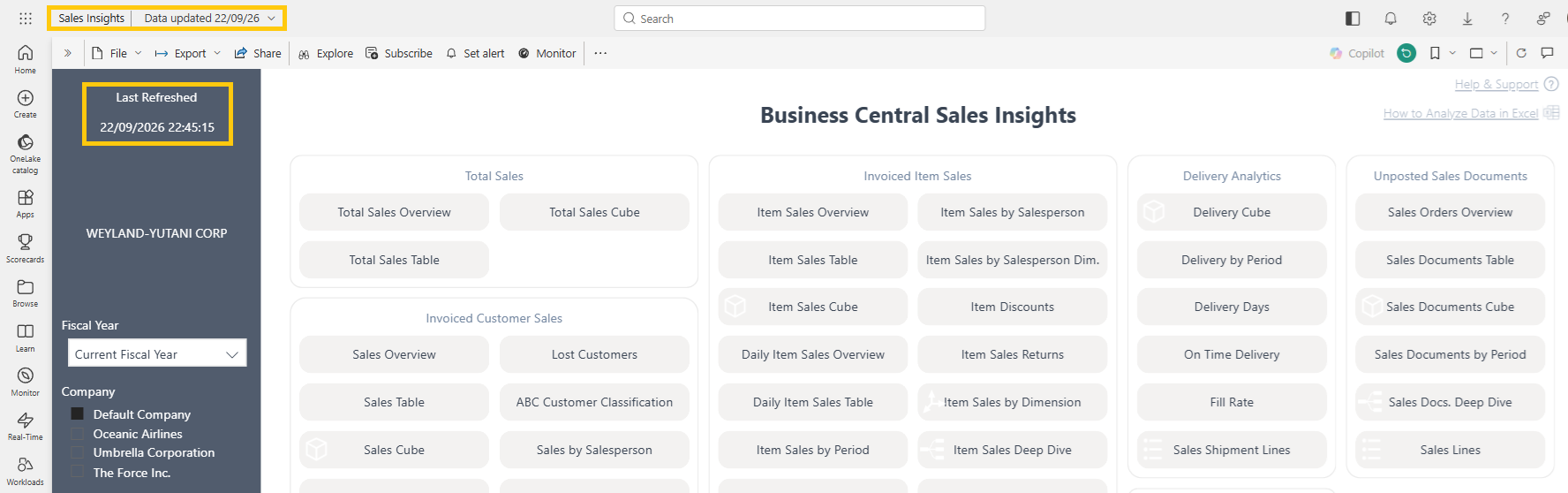
Report header. Next to the report name at the top left, Power BI shows Data updated with the date. Click the arrow next to it for the exact time. This is visible on every page of the report.
Report Home page. The left navigation panel shows Last Refreshed with the exact date and time the data was read from Business Central.
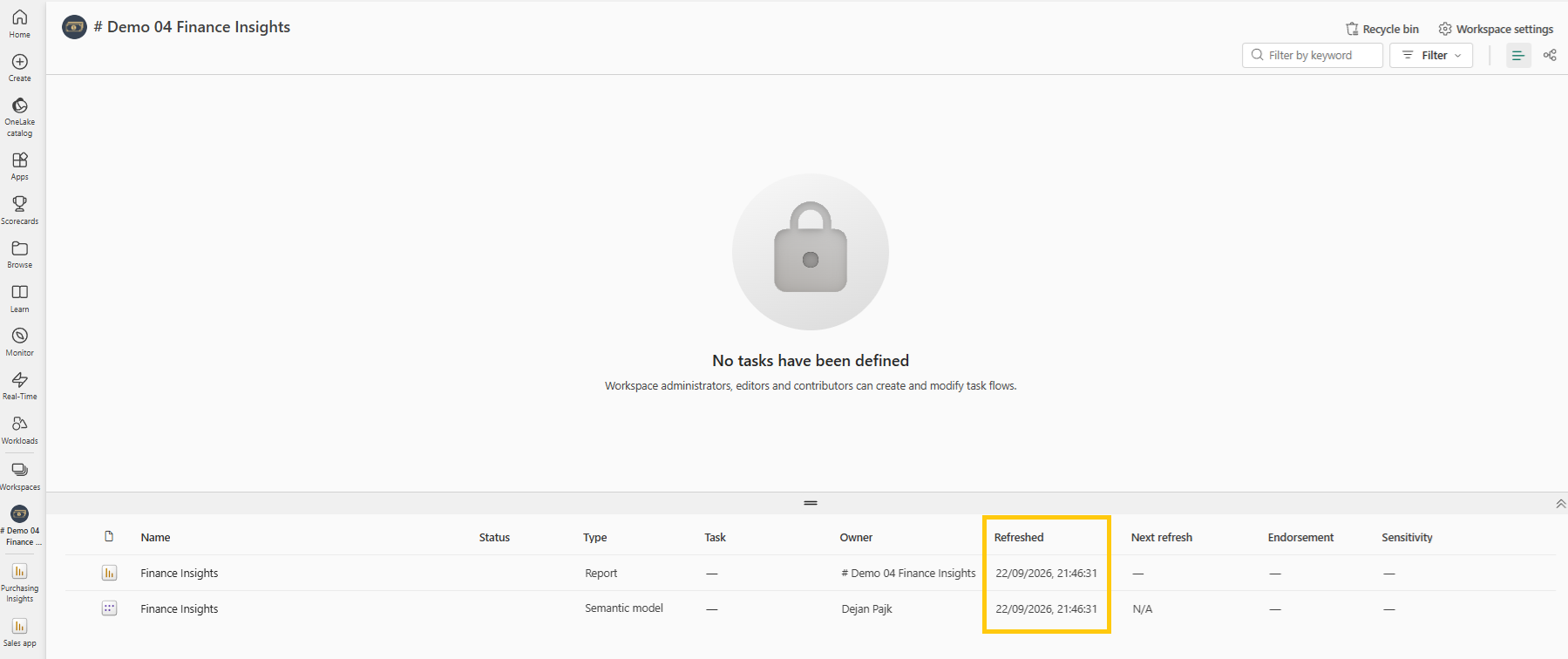
Workspace. Open the workspace in Power BI and find the item of type Semantic model. The Refreshed column shows when the last refresh completed, and Next refresh shows when the next scheduled refresh is due. You need access to the workspace for this; if you only have the app, ask your Power BI admin.
 If the data is older than expected
Refreshed is older than expected or shows a warning icon: the last refresh failed. See Refresh error and Credentials invalid.
Next refresh shows N/A: no refresh schedule is set up. See Schedule automatic data refresh.
You need newer data now: refresh manually (see below).
How to refresh the data manually
If you don't want to wait for the next scheduled refresh, you can start one yourself. You need Contributor access or higher to the workspace; if you only have the app, ask your Power BI admin to do this.
Open the workspace in Power BI (app.powerbi.com).
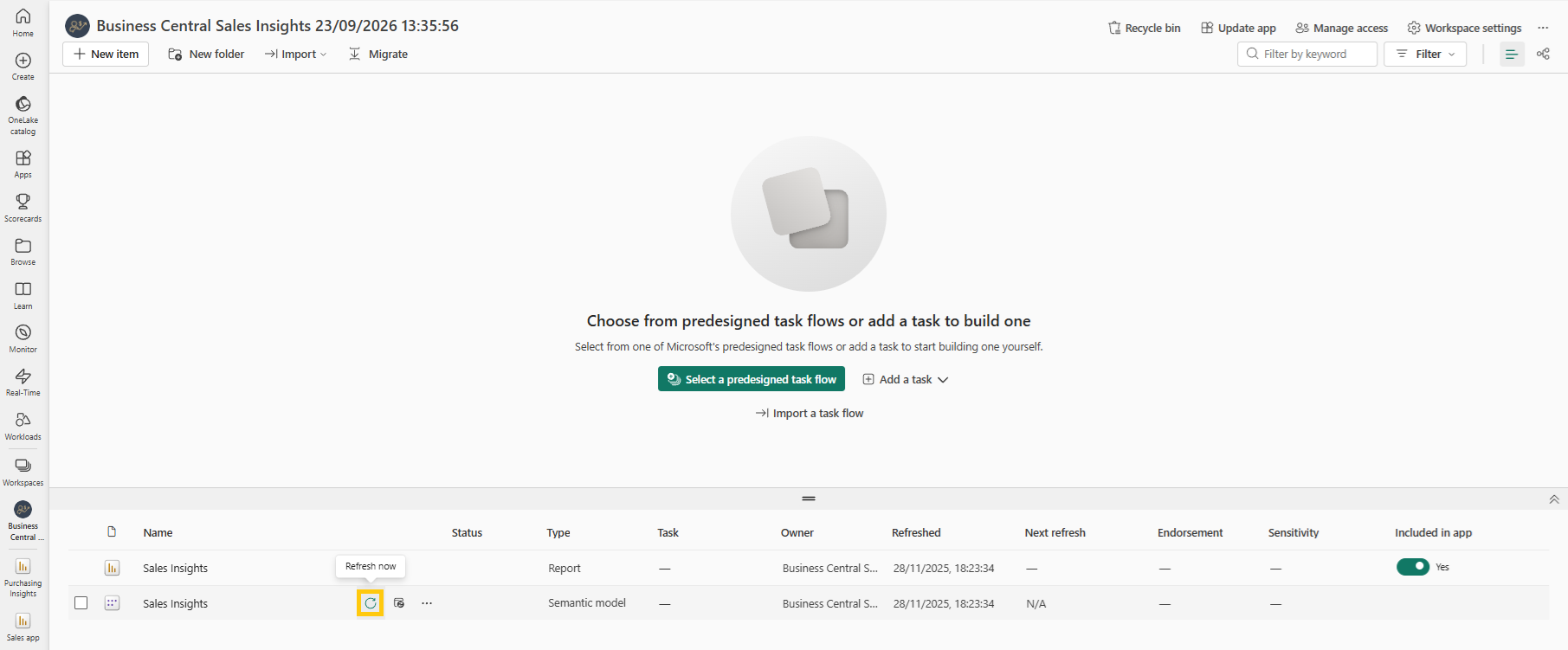
Hover over the item of type Semantic model (not the Report). Two icons appear next to its name: Refresh now and Schedule refresh.
Click Refresh now (the circular arrow).
The refresh runs in the background; how long it takes depends on your data volume. When it finishes, the Refreshed column shows the new date and time. A warning icon means the refresh failed, see Refresh error.
Back in the report, click Refresh in the report toolbar (or reload the page) to load the new data into the visuals.