Dimension Setup

Dimension Setup
Prerequisite: Please make sure you have installed the Insights Connector for Power BI App
In Dynamics 365 Business Central open the Insights Connector for Power BI App.
Select Setup per Company > Dimensions.
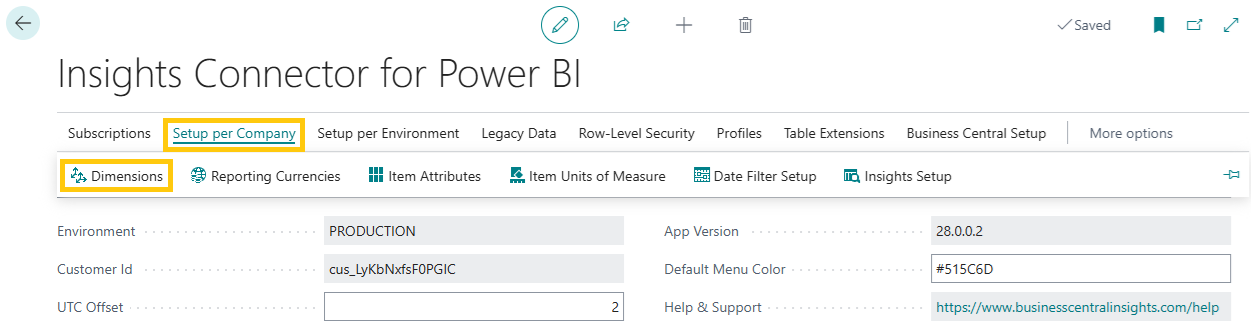
The Business Central Insights apps will give you the ability to filter your data by 15 custom dimensions, including standard Customer Group, Salesperson and Item Group dimension.
Please note that the Dimension Setup is app-specific. Each app can have a unique set of dimensions. For example, a Sales Campaign dimension might only be relevant for the Sales app, but not for the Purchasing or Inventory app.
When you install the connector, the first 8 dimensions will be copied from the General Ledger Setup.
In Power BI you will find all 15 dimensions in the Filters pane on the right side of the reports.
Please note the Dimensions Setup is company specific. You will need to set dimensions for each company separately.
Default Dimension Setup
At the bottom of the Dimension Setup page, you can also configure default dimensions for Items, Customers and G/L Accounts. These defaults allow you to map the Business Central default-dimension fields directly into the cube, ensuring that your reporting reflects both transactional dimensions and the default master-data classifications your business relies on.
To set these up, simply use the dropdown menus in the Default Dimension columns and select the dimension values you want to map. Once configured, these fields become available in the cube as clearly labelled Default Dimension fields, allowing you to group, filter and analyse historic data even when older transactions did not contain those dimension values at the time of posting.
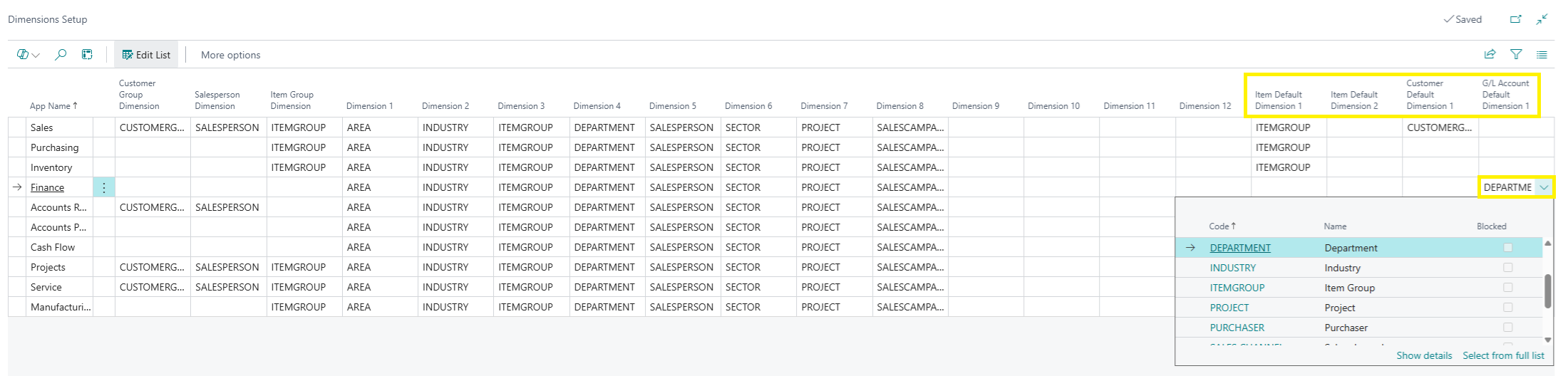 Default dimensions are especially useful when:
A dimension has been introduced recently and older entries don’t contain that value
You want consistent, full-history reporting across customers, items or accounts
Your reporting structure depends on the current master-data grouping rather than historical transaction-level assignments
By configuring these fields here, your cube will automatically reflect both types of dimensional behaviour, transactional accuracy and default-dimension rollups, giving you maximum flexibility in your analysis.
If you want to learn how to analyse your dimensions in more detail, including a full video tutorial, visit our Dimensional Analysis page: https://businesscentralinsights.com/analyze-data-by-dimensions
You can find more information about dimensions here.