Upgrade Troubleshooting

This guide helps you verify whether your Power BI Insights Connector and Power BI apps are up to date, and what to check if an upgrade does not work as expected.
Check Connector Version
Open the Release Notes and note the latest version numbers: 👉https://businesscentralinsights.com/bci-release-notes-hub
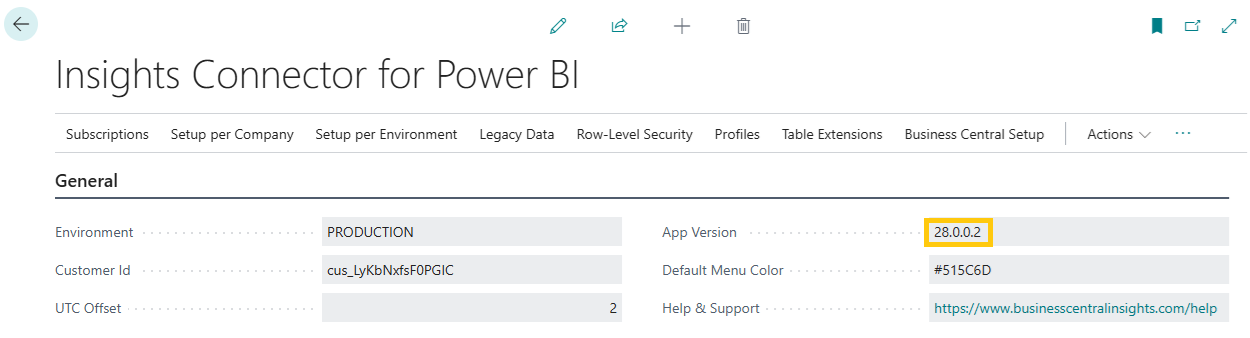
In Business Central, check the version of the Power BI Insights Connector:
Use Search in Business Central
Search for Insights Connector for Power BI
Open the connector
Note the Version shown
Compare the version in Business Central with the version listed in the Release Notes.
Check Power BI App Versions
Open the Release Notes and note the latest version numbers: 👉https://businesscentralinsights.com/bci-release-notes-hub
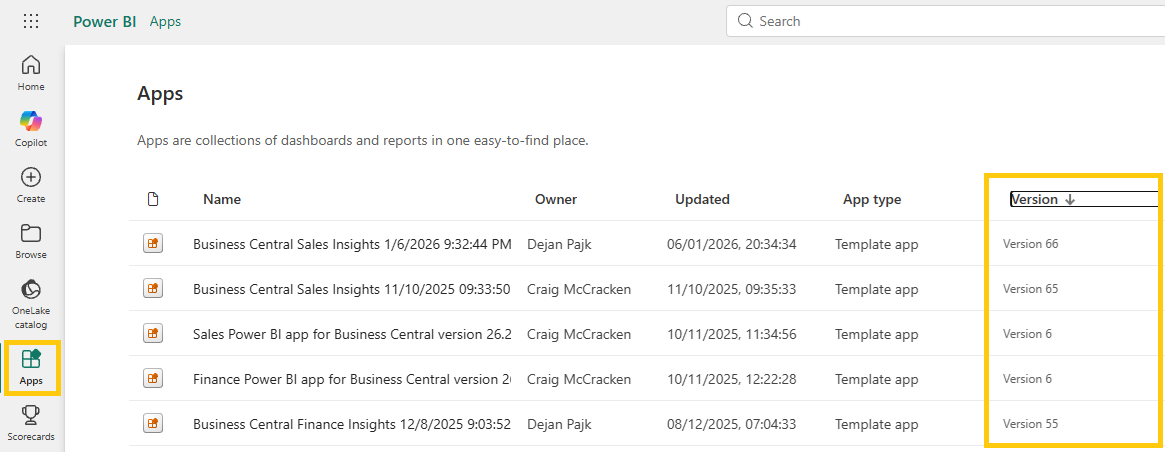
In Power BI, check the version of each installed reporting app:
Go to Apps in Power BI
Note the installed Version for each app
Compare your installed versions with the versions in the Release Notes.
 ✅ If your installed versions already match the latest versions in the Release Notes, no upgrade is required.
Get it now button not visible
If your version is not up to date, you should see a Get it now button in the Power BI workspace.
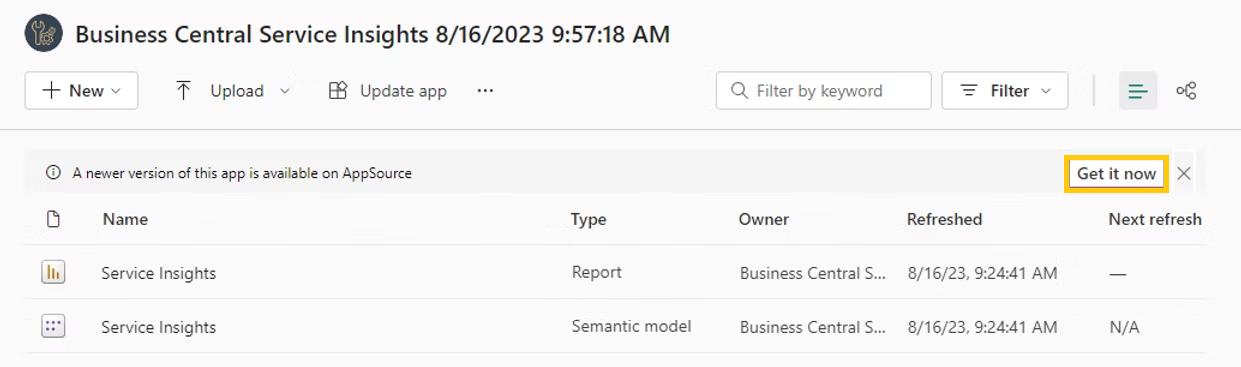
If the Get it now button is not visible, please check the following:
Ensure the semantic model is properly configured under your account.
Learn more: 👉 https://businesscentralinsights.com/take-control-of-semantic-modelConfirm that you are a workspace admin.
Learn more: 👉 https://businesscentralinsights.com/share-power-bi-workspace
The app cannot be updated
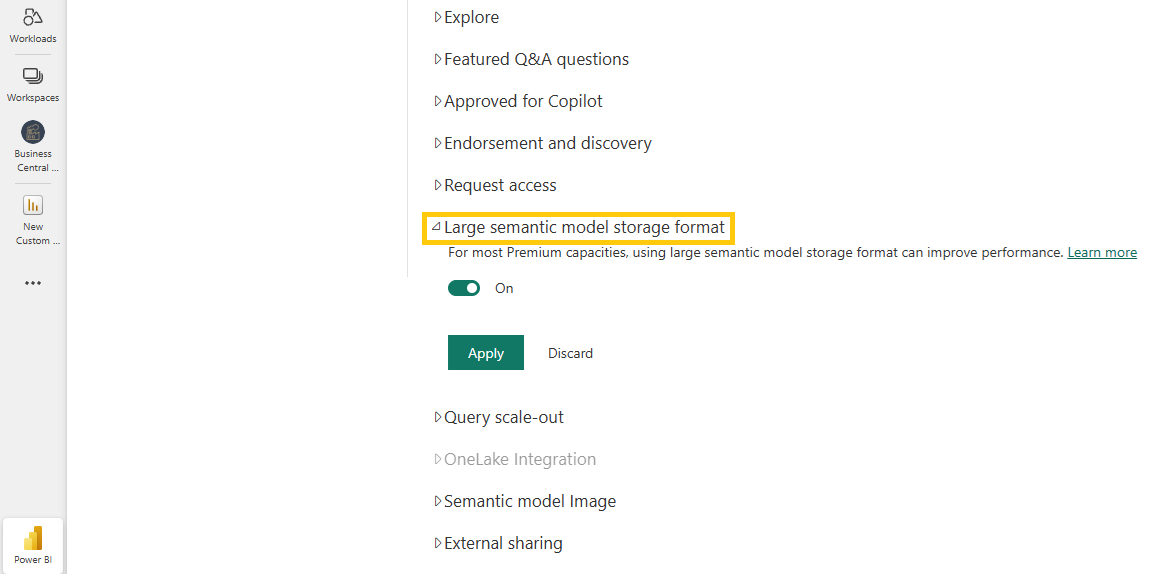
If you encounter an error during the upgrade, make sure that Large semantic model is disabled in your Power BI settings.
Follow these steps to check and disable it:
In Power BI, go to the Workspace where the app is installed
Open the Semantic model used by the app
Select Settings > Open settings page
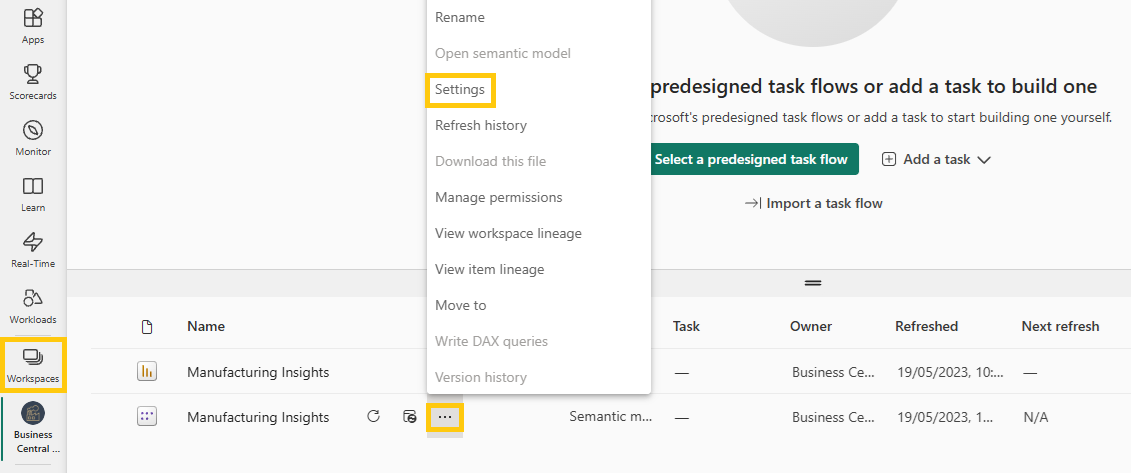
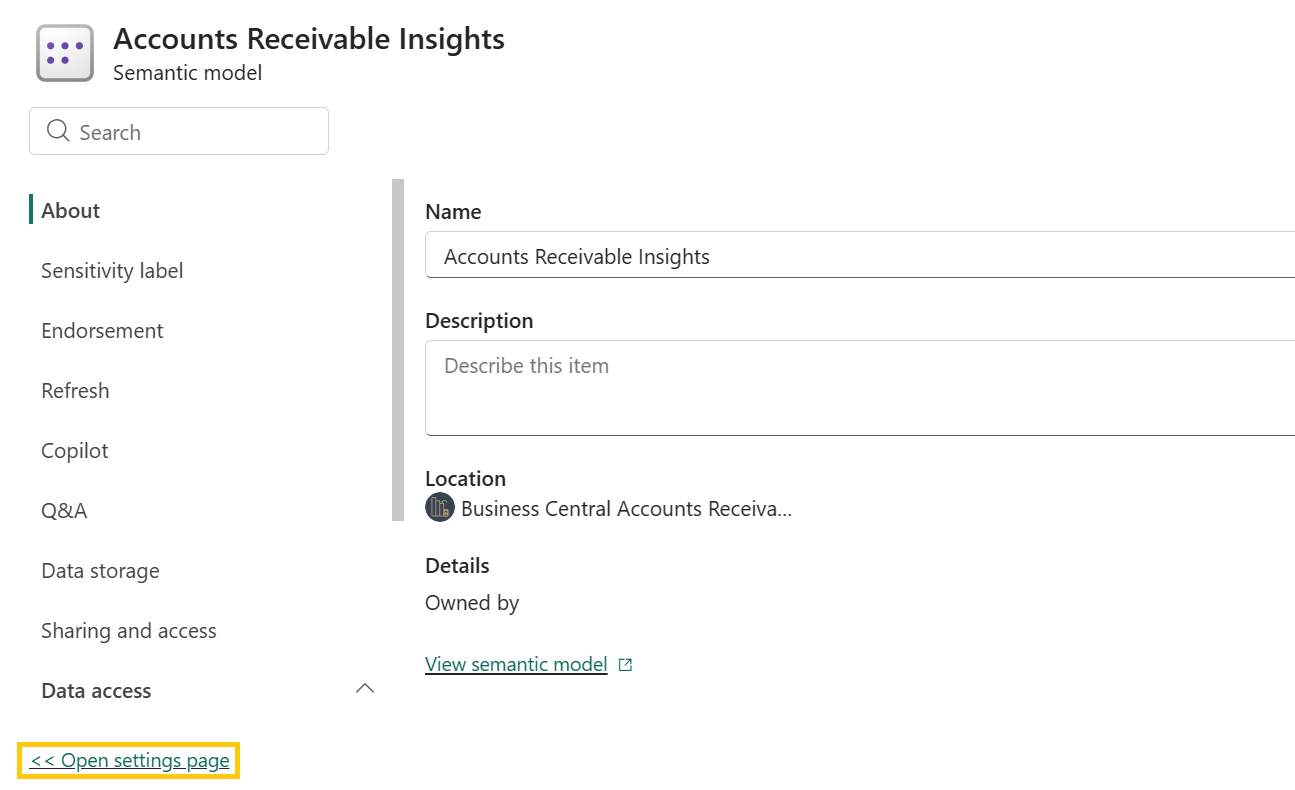
Locate the Large semantic model option
Ensure Large semantic model is disabled by toggling it off
Apply the changes
Return to the app and try the upgrade again
Need Help?
If you continue experiencing this error or need guidance optimizing report performance, please contact our support team (support@eknowtion.com)