Supplier Delivery Performance for Business Central

The Receipt Analytics reports in the Purchasing Insights app show how well your suppliers deliver against what they promised you. They are the mirror image of the Delivery Analytics reports in Sales Insights – the same logic, applied to purchase orders and posted purchase receipts – so a team that manages customer service levels with one can manage supplier service levels with the other.
Receipt Days – how long suppliers take, and how far they land from the committed date.
On-Time Receipt – what share of purchase orders, order lines, receipts or quantity arrived on time.
Vendor Fill Rate – what share of orders, order lines or quantity suppliers have delivered in full.
Receipt Cube – the same measures, arranged however you need them.
All reports read the standard Business Central purchase tables. Nothing has to be configured in Business Central beyond the receipt dates you already maintain on your purchase lines.
Receipt Days
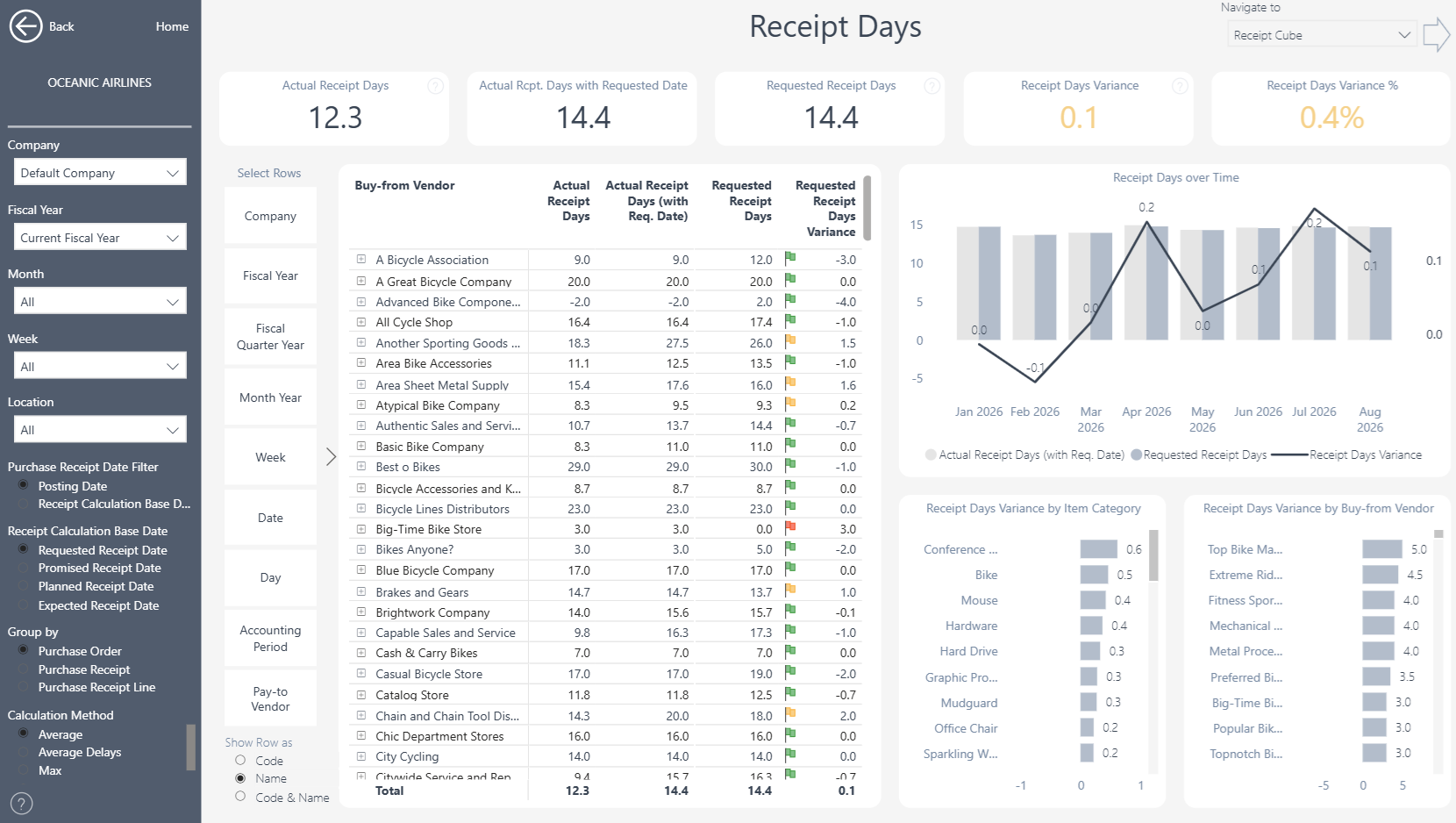 The Receipt Days report measures the time between placing a purchase order and receiving the goods, and compares it with the lead time the supplier committed to. It answers "how long do our suppliers take?" and "how far off are they?" – by vendor, item, location, purchaser, dimension or period.
The three numbers
For each posted purchase receipt line the report calculates, in calendar days from the line's order date:
Measure | Counted from the order date to… |
|---|---|
Actual Receipt Days | the receipt posting date |
Requested / Promised / Planned / Expected Receipt Days | the committed date you selected as the base date |
Variance | the difference: actual days minus committed days |
A positive variance means the supplier delivered late by that many days; a negative variance means early. Lines with a blank order date, or a blank committed date, are left out of the calculation rather than distorting it.
Receipt Calculation Base Date
A Business Central purchase line can hold several commitment dates. Use the Receipt Calculation Base Date selection in the left-hand menu to choose the one that reflects your purchasing process: Requested Receipt Date, Promised Receipt Date, Planned Receipt Date or Expected Receipt Date. The committed-days and variance measures recalculate against your choice.
Grouping and calculation method
Group by – Purchase Order, Purchase Receipt (the default) or Purchase Receipt Line. This decides what one "receipt" is when days are averaged: an order may arrive in several receipts, and a receipt may contain several lines.
Calculation method
Method | What you get |
|---|---|
Average | Average days across the receipts in scope |
Average Delays | The same average, but over late receipts only – how late are suppliers when they are late |
Max | The longest number of days on any receipt line |
Min | The shortest number of days on any receipt line |
Max and Min always work at receipt-line level, whatever grouping you choose.
Which period a receipt falls into
The Purchase Receipt Date Filter setting decides whether a receipt appears in the period in which it was posted or the period in which it was due (see On-Time Receipt below for the full description). Use Posting Date to report on what arrived in a period, and Receipt Calculation Base Date to report on the supplier promises that fell due in it.
Choosing your rows
In the Select Rows section you can display receipt days by any field you like – vendor, item, purchaser, location, your financial dimensions, item attributes or time periods – and switch between them without rebuilding the visual. Combined with the base-date, grouping and method options, this one report gives you hundreds of views of supplier lead-time performance and lets you find the vendors, items and periods with the biggest impact. If a scenario you need is missing, tell us and we will look at including it in a future release.
On-Time Receipt
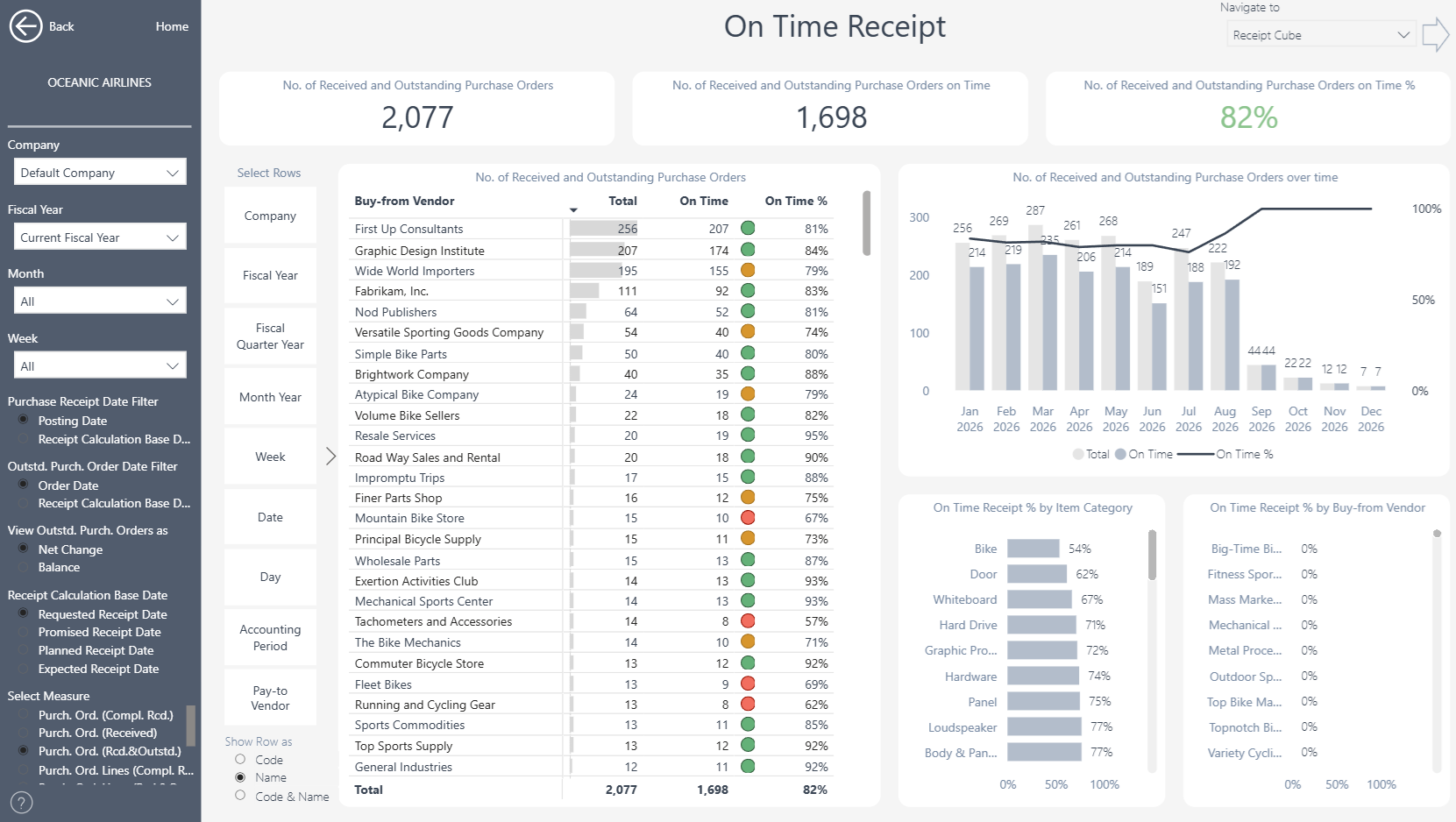 A late inbound delivery ripples outwards: production waits, safety stock gets consumed, and the customer order that depended on it goes late in turn. The On-Time Receipt report shows you how reliably each supplier delivers against the dates they commit to, at whatever level you want to manage it – purchase orders, order lines, receipts or quantity – and lets you drill from a company-wide percentage down to the individual orders that missed.
How on-time is decided
The report works from two sources:
Posted purchase receipt lines – what suppliers have already delivered.
Open purchase order lines – what they still owe you (order lines with an outstanding quantity).
A posted receipt line is on time when its posting date is on or before the date the supplier committed to.
An open order line is on time as long as its committed date has not yet passed. Open lines are evaluated against the date of your most recent data refresh: a line becomes overdue once its committed date is earlier than the refresh date, so a line due on the refresh date is still on time.
Because open lines are judged against the refresh date, measures that include them describe the current state of your inbound order book and move as time passes. Measures based only on posted receipts are historical and stay fixed.
Receipt Calculation Base Date
The "date the supplier committed to" is your choice. A Business Central purchase line can carry several receipt dates, and the Receipt Calculation Base Date selection in the left-hand menu lets you pick the one that reflects how you work with suppliers:
Option | Typical use |
|---|---|
Requested Receipt Date | The date you asked the supplier for |
Promised Receipt Date | The date the supplier confirmed |
Planned Receipt Date | The date Business Central calculated for receipt at your location |
Expected Receipt Date | The date the goods are expected to be available (planned receipt plus inbound handling time) |
Every measure on the page recalculates against your selection.
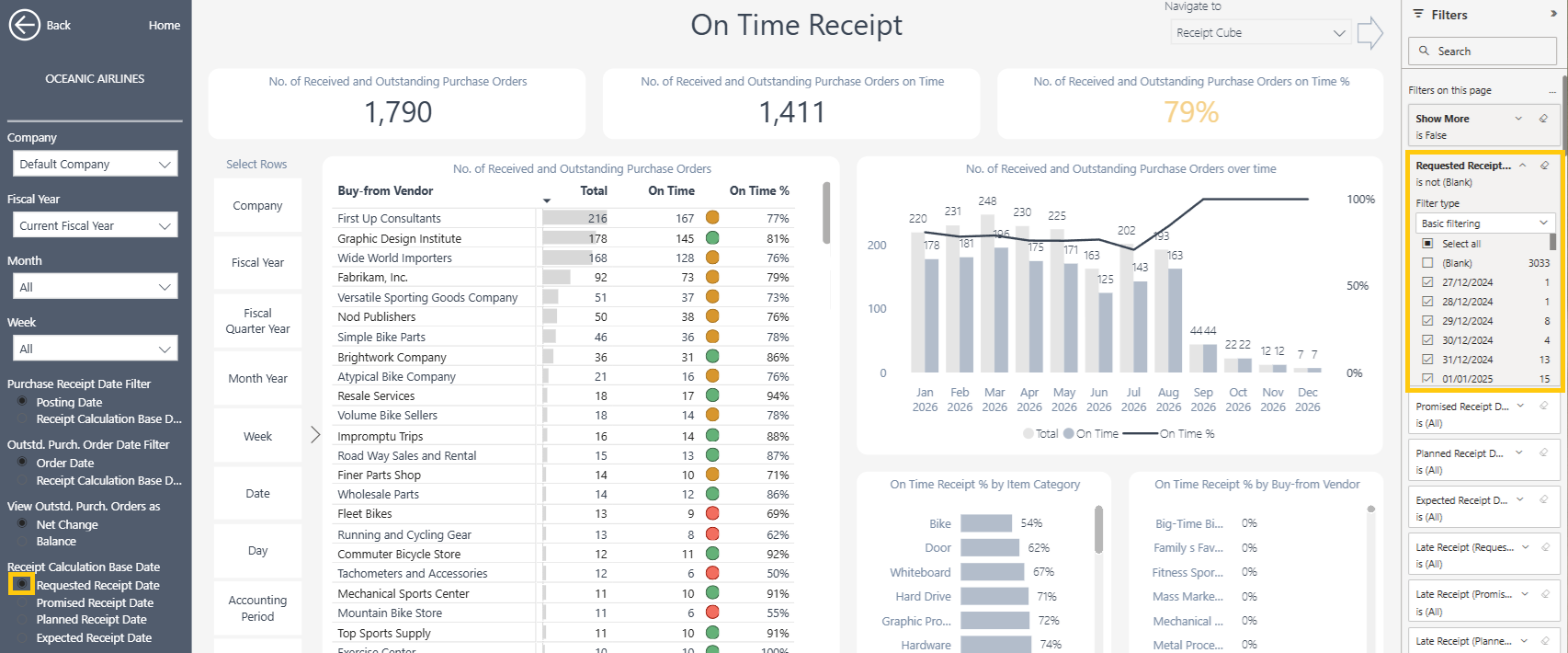
If a line has no value for the date selected under Receipt Calculation Base Date, it is classified as on time. To exclude these lines from the analysis, open the Filters pane on the right-hand side of the report, expand the filter that matches your selected date, and deselect (Blank).
For example, the screenshot below uses Requested Receipt Date as the calculation base date, so (Blank) is deselected in the Requested Receipt Date filter. If you select a different calculation base date, apply this filter to the corresponding date field instead.
Receipt lines with a zero or negative quantity, such as undone receipts, are never classified as late.
 Which period a line falls into
Two settings decide when a line is counted. Neither changes whether a line is on time; they only determine which Fiscal Year, Month or other date bucket it appears in.
Purchase Receipt Date Filter – for posted receipt lines:
Posting Date – the receipt appears in the period in which it was received.
Receipt Calculation Base Date – the receipt appears in the period in which it was due. With Requested Receipt Date selected above, a receipt is placed in the period of its requested receipt date, regardless of when it was posted.
Outstd. Purchase Order Date Filter – for open order lines:
Order Date – the line appears in the period in which the order was placed.
Receipt Calculation Base Date – the line appears in the period in which it is due.
Choose Posting Date / Order Date when you want to report on the activity in a period. Choose Receipt Calculation Base Date when you want to report on the promises that fell due in a period – usually the better fit for a supplier scorecard.
View Outstd. Purchase Orders as
Net Change includes only the open lines dated within the selected period.
Balance includes every line still open whose date (Order Date or Receipt Calculation Base Date, per the setting above) is on or before the end of the selected period. This gives you an order-book view rather than a per-period movement. The cut-off is the end of the selected period or, if that is later, the date of the most recent Business Central entry or data refresh.
Select Measure
Use the Select Measure menu on the left to change what is being counted. The label shown in the menu is in brackets. Each measure comes with an on-time count and an On-Time % (the on-time count divided by the total).
Measure | What is counted | When it is on time |
|---|---|---|
Completely Received Purchase Orders (Purch. Ord. (Compl. Rcd.)) | Orders with at least one posted receipt and no remaining outstanding quantity on any line | None of its receipt lines were late |
Received Purchase Orders (Purch. Ord. (Received)) | All orders with at least one posted receipt, including partially received orders | None of its receipt lines were late and none of its remaining open lines are overdue |
Received and Outstanding Purchase Orders (Purch. Ord. (Rcd.&Outstd.)) | Every placed order – received, partially received or not yet received | None of its receipt lines were late and none of its open lines are overdue |
Completely Received Purchase Order Lines (Purch. Ord. Lines (Compl. Rcd.)) | Order lines with at least one posted receipt and no remaining outstanding quantity | None of the line's receipts were late |
Received and Outstanding Purchase Order Lines (Purch. Ord. Lines (Rcd.&Outstd.)) | Every placed order line – received, partially received or not yet received | None of the line's receipts were late and any open remainder is not overdue |
Purchase Receipts | Posted purchase receipts | None of its lines were late |
Purchase Receipt Lines | Posted purchase receipt lines | The line itself was not late |
Received Quantity (Base) | Total received base quantity | The quantity on lines that were not late |
A few things worth knowing when you choose between them:
Completely Received Purchase Orders is closest to a supplier OTIF (On Time & In Full) metric, but interpret it in light of how open purchase orders are maintained in your Business Central – see 'Fill Rate' and 'In Full' Receipt Metrics Limitations in Business Central below.
Received and Outstanding Purchase Orders is the only order-level measure that also counts orders with nothing received yet, so it is the one to use for a complete picture of your inbound order book.
The two Purchase Order Lines measures weight a large order and a small one in proportion to the number of lines they contain, which is usually the fairer view for a supplier scorecard when order sizes vary widely. Completely Received lines are historical; Received and Outstanding lines include what is still open.
Received Quantity (Base) weights by volume instead, so one late line of 10,000 pieces counts for more than ten late lines of one piece each.
Worked example
You order three lines from a supplier, all requested for 10 June.
Line 1 is received on 5 June – on time.
Line 2 is received on 14 June – late.
Line 3 is still open on the refresh date of 20 June – overdue.
How it is counted:
Completely Received Purchase Orders: not counted – line 3 is still outstanding.
Received Purchase Orders and Received and Outstanding Purchase Orders: counted once, as not on time – one late receipt is enough, and the overdue open line would have failed it anyway.
Completely Received Purchase Order Lines: two lines, one on time.
Received and Outstanding Purchase Order Lines: three lines, one on time.
Purchase Receipt Lines: two lines, one on time.
A partially received order is judged as a whole: it can only be on time if every received line arrived on time and nothing still open is overdue. A supplier being on time with the part they have delivered does not make the order on time.
Orders spanning more than one period
Order-level measures count each order once per period in which it has activity. An order whose first receipt posts in May and whose second line is still open in June appears in both months. Period values are therefore not additive: the annual total is the number of distinct orders in the year, not the sum of the twelve months.
Summary of the rules
On time is measured against the receipt date you select as the base date.
A receipt line is late when its posting date is after the base date.
An open line is late when its base date is before the refresh date.
Blank base dates and zero or negative receipt quantities are never late.
An order or order line is on time only if nothing about it – received or still open – was or is late.
Vendor Fill Rate
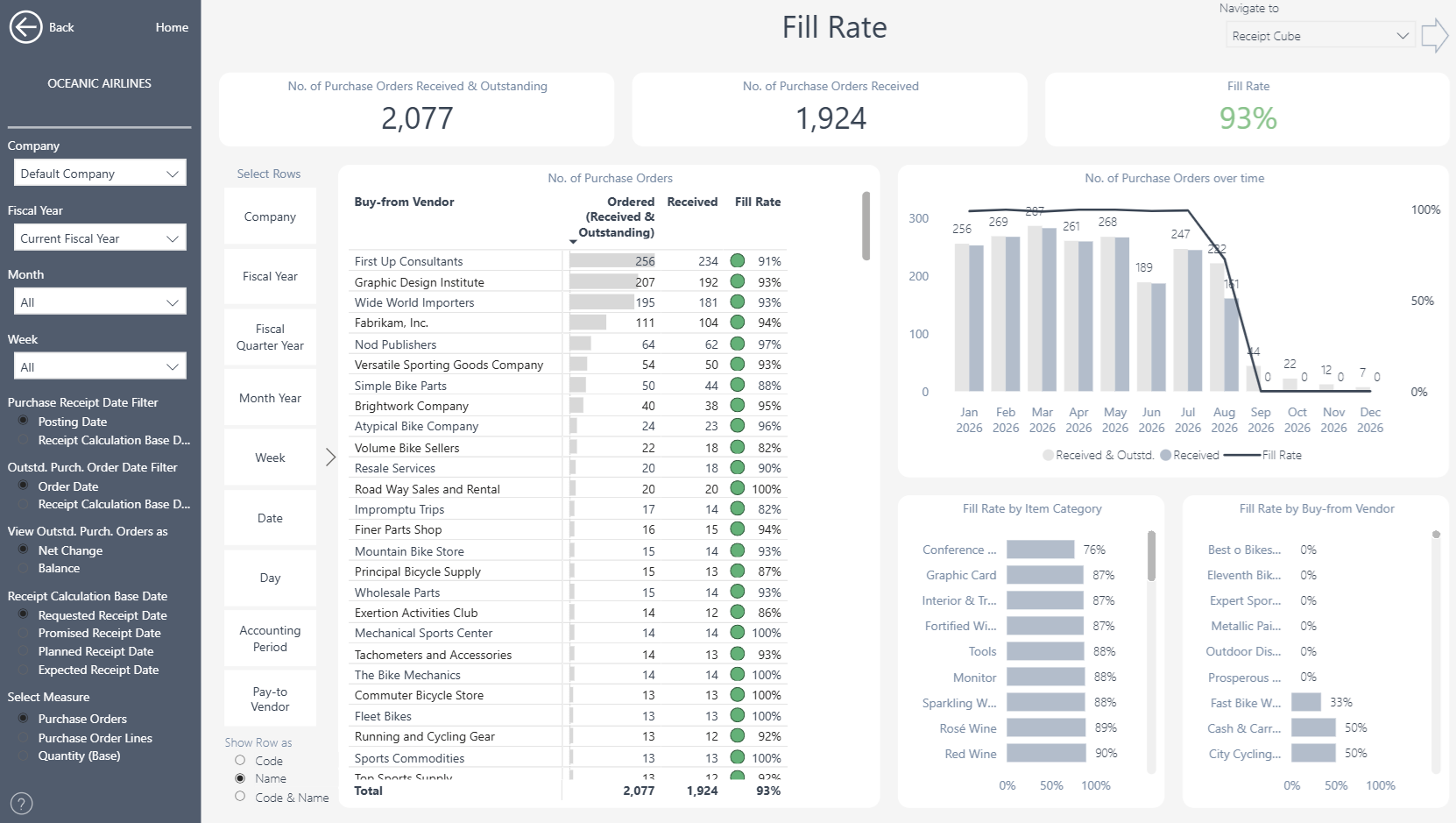 Vendor fill rate measures how much of what you ordered a supplier actually delivered, without leaving quantities on back-order. It is the natural companion to On-Time Receipt: one tells you whether the supplier delivered when they promised, the other whether they delivered what you ordered.
Use the Select Measure menu on the left to choose the level:
Measure | Formula |
|---|---|
Purchase Orders | Completely received orders ÷ all placed orders (received, partially received and outstanding) |
Purchase Order Lines | Completely received order lines ÷ all order lines (received, partially received and outstanding) |
Quantity (Base) | Received base quantity ÷ received plus outstanding base quantity |
Purchase Orders is the headline view: the share of orders a supplier delivered in full.
Purchase Order Lines shows completeness item by item, so one missing line on a large order does not hide the nine lines that arrived.
Quantity (Base) matters most where short shipments are the problem rather than missing lines – a supplier who sends 90 of every 100 ordered shows up here, not in the order-level view.
The denominators are the same "received and outstanding" counts used by the On-Time Receipt report, so the Outstd. Purchase Order Date Filter and View Outstd. Purchase Orders as (Net Change / Balance) settings described above work the same way here: they decide which period each open line belongs to and whether you see a per-period movement or an order-book balance.
In standard Business Central the Fill Rate and "In Full" metrics have limitations that come from how open purchase orders are maintained. These are discussed in the last section of this article.
Receipt Cube
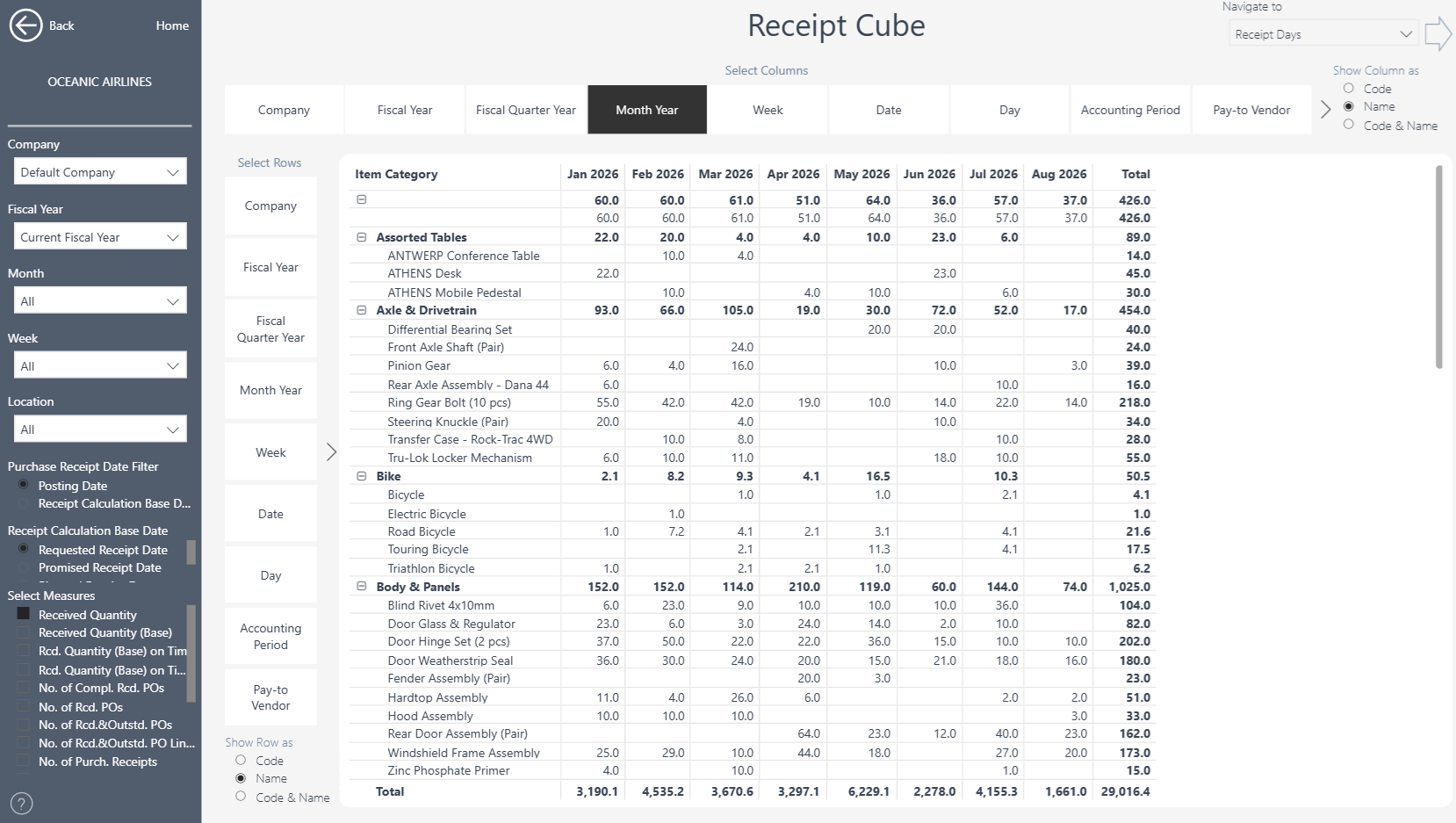 The Receipt Cube lets you place any of the receipt measures side by side and organise them the way your analysis needs – for example Actual Receipt Days, On-Time % and Purchase Order Fill Rate by vendor and month in one matrix, which is the basis of a supplier scorecard.
Select several measures or fields at once with Ctrl + click, put fields on rows or columns, or build hierarchies from several fields. The full instructions for working with cube reports are in the Cube Tutorial.
'Fill Rate' and 'In Full' Receipt Metrics Limitations in Business Central
In practice, purchase orders are not always received in full: a supplier may be unable to supply an item, or may deliver it much later than agreed. Purchasing teams handle this in several ways in Business Central, and each leaves a different trace in the data:
If the delay is not acceptable, the remaining lines or quantities are usually deleted from the purchase order and sourced elsewhere.
If the delay is accepted, the order is either left open until the remaining lines are received, or adjusted to what was actually delivered and a new order created for the remainder with a new promised date.
Keeping a clean purchase order book by removing obsolete or unfulfillable lines is good practice and essential for reliable MRP and inventory planning. But it also changes the numbers: the Vendor Fill Rate measures, the Completely Received ("In Full") measures and the On-Time Receipt measures that include outstanding orders are all calculated from the open purchase order lines as they stand at the time of the refresh. An order that was trimmed to what actually arrived looks completely fulfilled; the same order left open looks late. Read these metrics with your order-maintenance routine in mind, and ideally review them in step with your purchase order clean-up cycle.
Business Central Insights deliberately does not use archived purchase orders to reconstruct what was originally ordered. Orders and order lines are deleted or amended for many reasons, and an approach that depended on a particular implementation practice would be wrong for everyone who follows a different one. Where a customer's process makes archived orders a reliable source, they can be brought in as a customisation of the app.
Other Linked Topics & Feedback
The same analysis for your customers – Delivery Days, On-Time Delivery and Fill Rate – is in the Sales Insights app; see the Delivery Analytics tutorial.
As always, please share your feedback with us. We are continually improving our apps and will do our best to include your suggestions in future releases.