“A Connection Could Not Be Made to the Data Source” After Power BI App Upgrade

Overview
When using Business Central Insights Power BI Apps, you may encounter the following error in Power BI Desktop, Power BI Service, or Excel:
A connection could not be made to the data source…
This issue typically appears after upgrading a Business Central Insights App following the instructions in:
https://businesscentralinsights.com/upgrade
The root cause is automatic renaming of the Power BI Workspace during the upgrade process.
Why This Happens
Every time you upgrade a Business Central Insights Power BI App, Power BI automatically appends a Date/Time suffix to the workspace name.
Example
Before upgrade:
Business Central Finance InsightsAfter upgrade:
Business Central Finance Insights 1/31/2025 2:23:52 PM
This renaming happens without user confirmation and causes downstream issues because:
Any custom Power BI reports built using the semantic model inside that workspace still point to the old workspace name.
Excel files analyzing data through “Analyze in Excel” remain connected to the original semantic model workspace path.
As a result, all these elements fail to refresh or connect, which produces the error shown above.
Symptoms You May See
Power BI visuals fail with:
A connection could not be made to the data sourceExcel files connected using Analyze in Excel display:
Unable to connect to the model
Custom reports referencing the semantic model stop refreshing
Datasets show connection failures in Power BI Service
Dashboards display missing or broken visuals
How to Confirm the Issue
If the Workspace name includes a timestamp like:
… 1/31/2025 2:23:52 PM
… 10/08/2025 10:48:27 AM
→ This confirms the issue.
Power BI added this timestamp during upgrade.
How to Fix the Issue
Solution: Rename the Workspace and Remove the Date/Time Suffix
This restores the original workspace name so all connections match their original paths.
Step-by-Step Instructions
Open Power BI Service (https://app.powerbi.com)
Go to Workspaces
Find the workspace with the unexpected date/time suffix
Click Workspace Settings
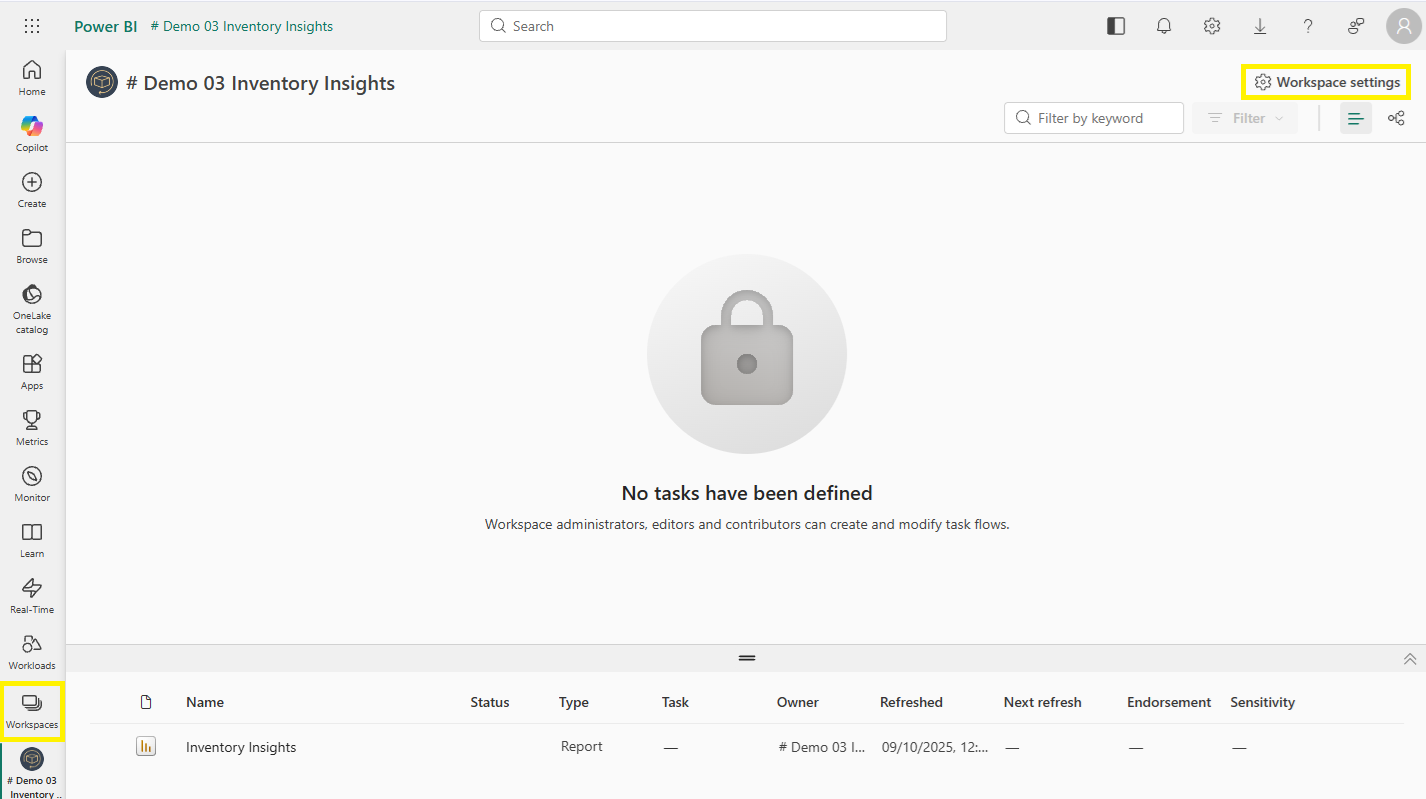
Rename the workspace back to its original name
(e.g., change Business Central Finance Insights 1/31/2025 2:23:52 PM → Business Central Finance Insights)The changes automatically save
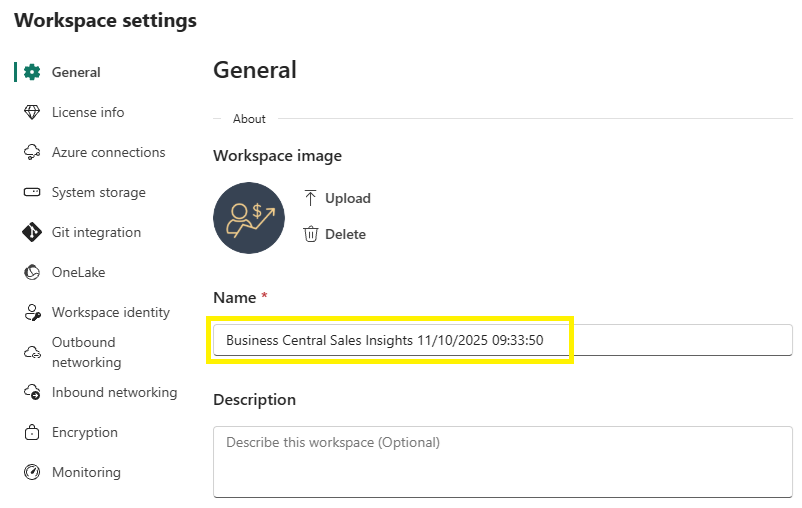
Once renamed:
All custom Power BI reports will reconnect automatically
Existing Excel Analyze-in-Excel files will reconnect
Datasets will refresh successfully
Visuals will load without error
Preventing Future Issues
Because Power BI automatically renames the workspace every time you upgrade the App:
After every upgrade, you should:
Check if Power BI appended a date/time suffix
Rename the workspace immediately
Keep the workspace name consistent with the original app name
This ensures all custom reports and external connections remain stable.