Data Refresh Error: Production Order contains duplicate value

This means Power BI has found duplicate records in the underlying Business Central table the report depends on. Until the duplicate is removed or corrected, the affected Insights app cannot refresh successfully.
Step 1 – Confirm the error in Power BI
Open the Power BI Service
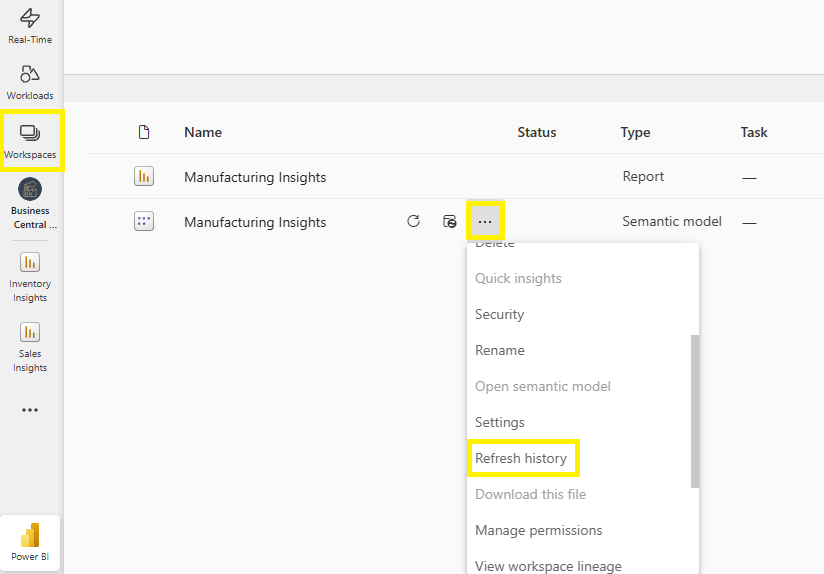
Go to the Manufacturing Insights workspace
Select the ellipsis (…) → Settings
Scroll to Refresh history
Expand the most recent failed refresh using show
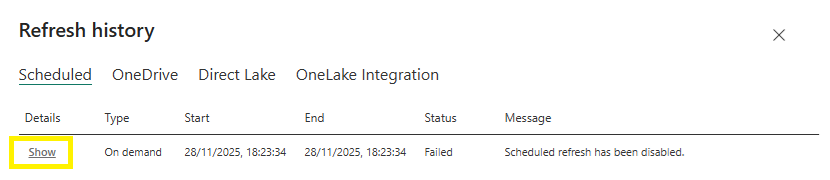
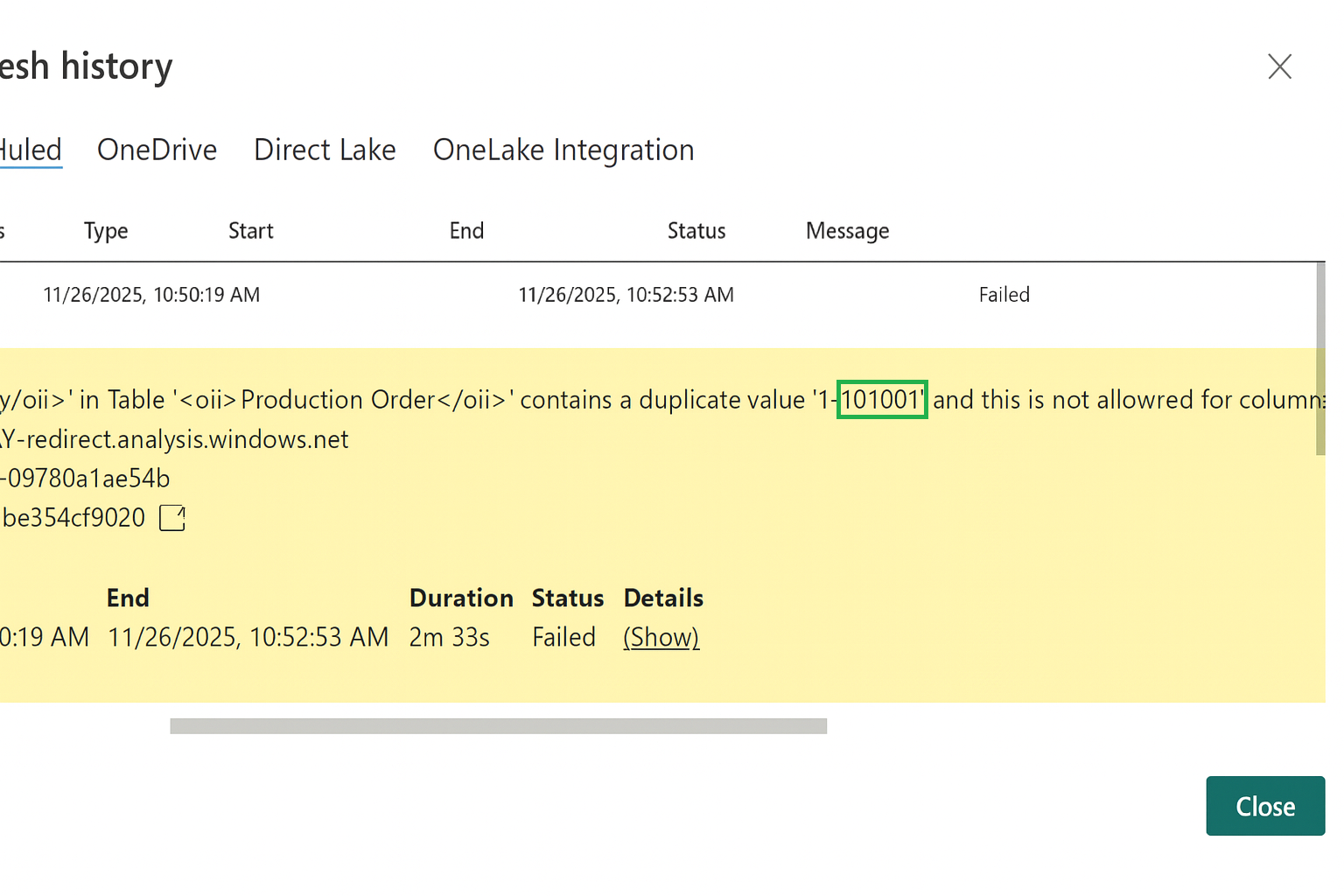
Look for a message similar to:
Production order contains a duplicate value
The message will include the Production Order No. you need to search for in Business Central.
Step 2 – Locate the duplicate record in Business Central
To find the duplicate:
Open Business Central
Use Tell me (Alt + Q) and search for the corresponding list page (example "Production Order List")
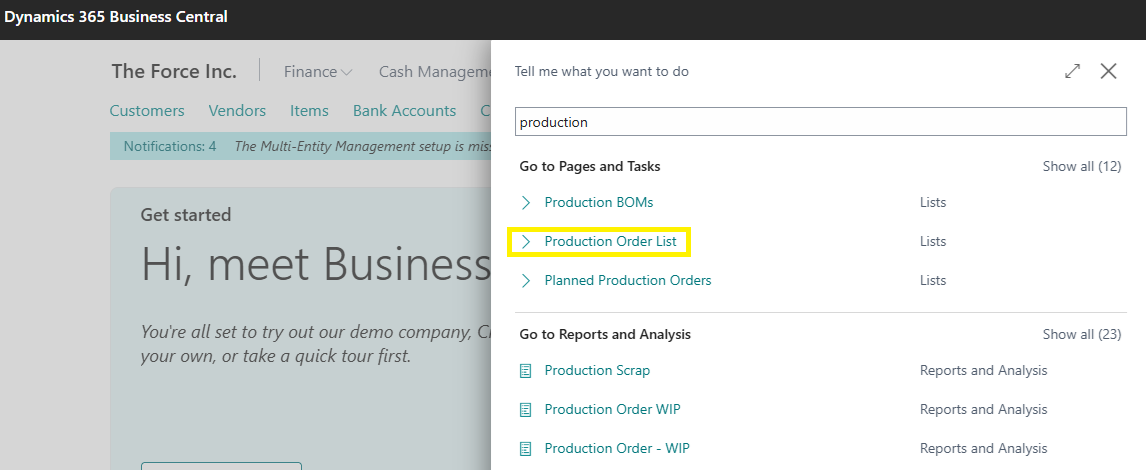
Filter by the Production Order No. shown in the error

You will normally see two or more records with the same key or number
These duplicate entries are what prevent the semantic model from refreshing.
Step 3 – Remove or correct the duplicate
⚠️ Important: Only delete or modify records if it is safe according to your internal processes. If you’re unsure, contact your Business Central partner or administrator.
Once the duplicate is resolved, Power BI can refresh normally.
Step 4 – Refresh the semantic model again
Go back to the Workspace
On the affected semantic model, select ellipsis (…) → Refresh now

Wait for the refresh to complete
Check Refresh history to confirm the status shows Completed
If another duplicate exists in a different table, a new error will appear—repeat the steps above.
Still seeing issues?
If you can’t find the duplicate record or are unsure which table it relates to:
Capture a screenshot of the full error
Send it to your Business Central partner or to the Business Central Insights support team: https://businesscentralinsights.com/book-a-call
We can help identify the exact table and record causing the issue