Embedded Power BI Reports for Business Central

Embedded Power BI reports bring the Business Central Insights reports into Business Central. You open them from your role center or from search, without leaving Business Central, and you see the same reports, data and security as in Power BI.
Why embedded reports
Embedded reports put analytics one click away from the work it supports, so more people use the reports and nobody has to switch apps.
Reports where you work. Open a report from the Power BI - Insights menu on your role center. No second browser tab, no searching for the right workspace in Power BI.
Tailored to each role. Each role center shows the apps that fit the job. An accountant sees Finance, Receivables, Payables and Cash Flow; a purchasing agent sees Purchasing.
Straight to the right report. More than 250 report pages across the 12 apps each have their own menu entry. You can also find them in search and bookmark the ones you use every day.
Set up in minutes. Choose the Power BI workspace of each app and the report is found automatically. One setup covers every company in the environment.
The same security as Power BI. Each report loads as the signed-in user, so the user's Power BI license, workspace access and row-level security all apply.
You stay in control. Show or hide each app in Business Central, and use permission sets to choose which reports each user sees there.
Works with your customized reports. If you have a customized copy of a report, you can show that copy instead of the standard one.
What you need
A user who can open a report in Power BI can open it in Business Central, once the app is set up and the user has the permission set.
Who | What they need |
|---|---|
Environment | Insights Connector for Power BI version 29 or later. |
Environment | The Business Central Insights apps installed in Power BI, each with an active subscription or free trial. |
Administrator who does the setup | The Power BI Insights Connector permission set in Business Central. |
Administrator who does the setup | Membership of the Power BI workspace of each app. You can only choose a workspace that you are a member of. |
Every user who opens reports | A Power BI license and access to the report in Power BI. |
Every user who opens reports | A permission set for the reports in Business Central. Without one, the reports do not show (see Permissions). |
Set up embedded reports
Setup is done once per environment on the Embedded Power BI Reports page and applies to all companies.
Open the setup page. Search for Insights Connector for Power BI, then choose Setup per Environment > Embedded Power BI Reports. On the Business Manager role center you can also choose Power BI - Insights > Embedded Power BI Reports. The page lists the 12 apps.
Connect to Power BI, if asked. If you have not used Power BI in Business Central before, the standard Power BI setup opens. Complete it once.
Choose the workspace of each app. Select the app, choose Choose Workspace and pick the Power BI workspace where the app is installed. The report in that workspace is found automatically and the status changes to Ready. If the workspace holds several reports, you may be asked to choose one. To show a customized copy instead, choose Choose Report.
Check the status. Each app you want to show should have Status Ready, In Business Central Shown and Subscription Active.
Give users access. Assign each user a permission set for the reports they should see. Without one, the user sees no reports (see Permissions). Users see the new menu after they sign in again.
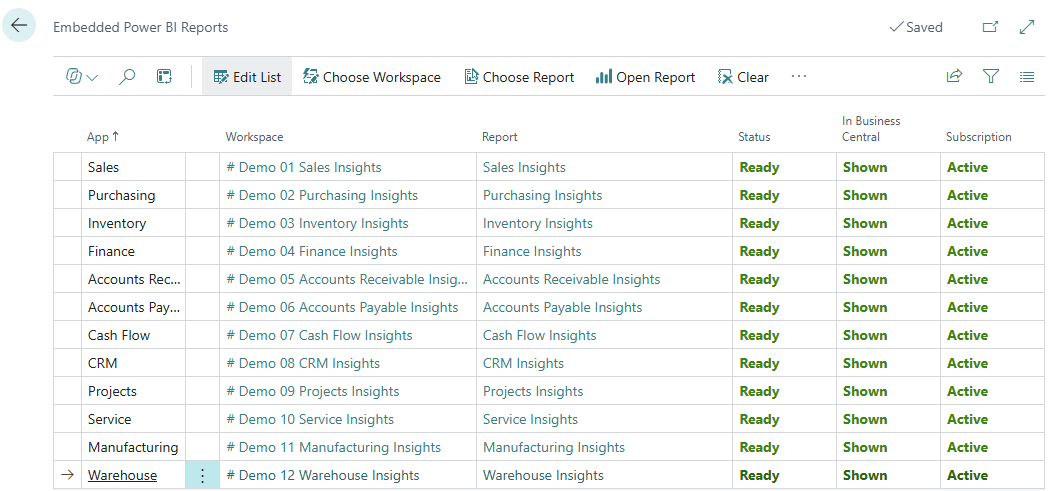
What the columns mean
Column | Values |
|---|---|
Status | Ready: the report can be opened. Report not chosen: a workspace is chosen, but no report. Hidden: the report is chosen, but hidden in Business Central. Not set up: no workspace is chosen. |
In Business Central | Shown or Hidden: whether the reports are on the role centers and in search for you right now. |
Subscription | Active: the app has an active subscription or free trial. None: it has neither. Not checked: the subscription could not be checked. |
Permissions
A user sees a report in Business Central only if they have Execute permission on its page. Without it, the report is missing from the role center menu and from search, even when the app is set up.
Each report of an app is a separate page in Business Central. The permission sets below give Execute permission on those pages, so the sets you assign decide which reports each user sees.
Important: this is not a security feature. Permissions only choose which reports show in Business Central. They do not protect a report or its data.
Users can still open every page of the report in Power BI.
Inside an embedded report, users can still move to other pages, for example from the menu on the Home page.
Power BI has no page-level security. To limit the data a user sees, use row-level security (see Who sees what).
Permission sets
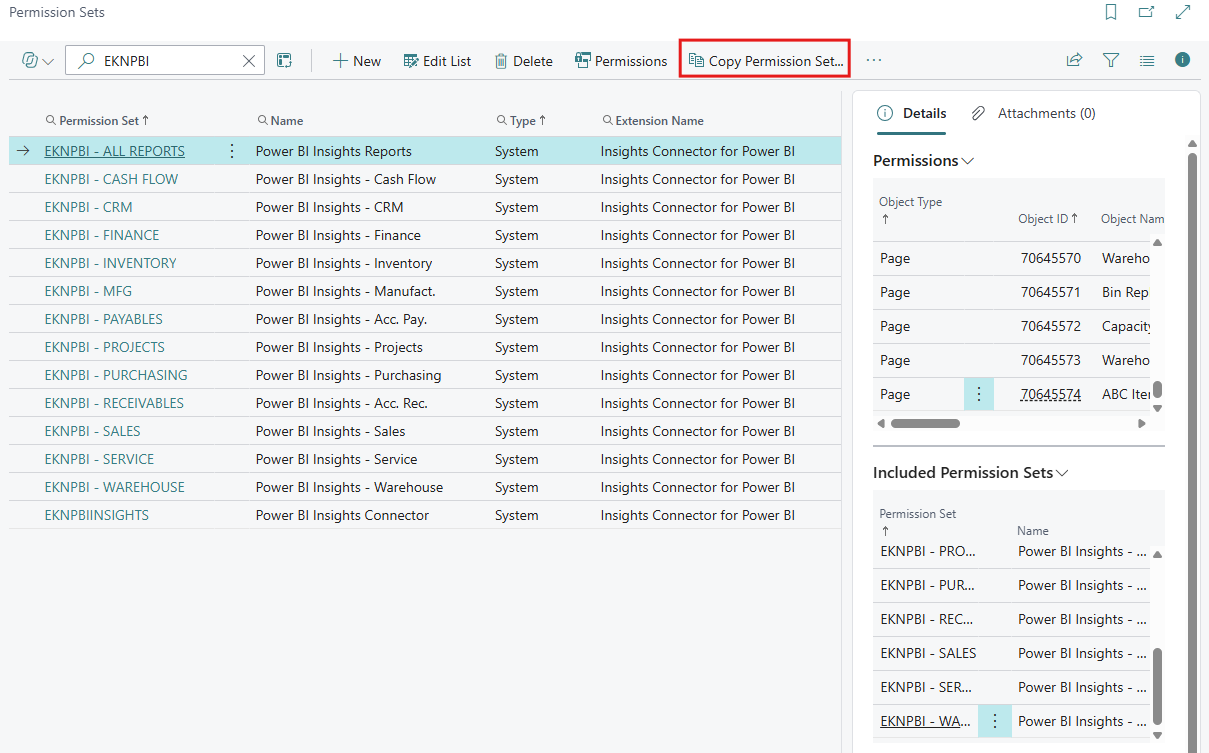
The Connector comes with 14 permission sets. To list them, search for Permission Sets and filter on "EKNPBI".
Permission set | Name | Report pages | Use it for |
|---|---|---|---|
EKNPBIINSIGHTS | Power BI Insights Connector | All 262 | Administrators. The whole Connector setup, including the Embedded Power BI Reports page, and all reports. |
EKNPBI - ALL REPORTS | Power BI Insights Reports | All 262 | Users who see the reports of every app. Cannot change the setup. |
EKNPBI - SALES | Power BI Insights - Sales | 47 | Sales Insights reports only. |
EKNPBI - PURCHASING | Power BI Insights - Purchasing | 42 | Purchasing Insights reports only. |
EKNPBI - INVENTORY | Power BI Insights - Inventory | 26 | Inventory Insights reports only. |
EKNPBI - FINANCE | Power BI Insights - Finance | 27 | Finance Insights reports only. |
EKNPBI - RECEIVABLES | Power BI Insights - Acc. Rec. | 13 | Accounts Receivable Insights reports only. |
EKNPBI - PAYABLES | Power BI Insights - Acc. Pay. | 12 | Accounts Payable Insights reports only. |
EKNPBI - CASH FLOW | Power BI Insights - Cash Flow | 12 | Cash Flow Insights reports only. |
EKNPBI - CRM | Power BI Insights - CRM | 14 | CRM Insights reports only. |
EKNPBI - PROJECTS | Power BI Insights - Projects | 14 | Projects Insights reports only. |
EKNPBI - SERVICE | Power BI Insights - Service | 18 | Service Insights reports only. |
EKNPBI - MFG | Power BI Insights - Manufact. | 27 | Manufacturing Insights reports only. |
EKNPBI - WAREHOUSE | Power BI Insights - Warehouse | 10 | Warehouse Insights reports only. |
You can combine the per-app sets, for example Sales and Finance for one user. The page counts are for version 29 and include the Home page of each app.
Show only selected reports to a user
To show a user only some reports of an app, copy the app's permission set, remove the pages the user does not need, and assign the copy.
Copy the permission set. Search for Permission Sets, select the set of the app, for example EKNPBI - SALES, and choose Copy Permission Set.
Name the copy. Enter a name for the new permission set. In the Copy operation field, choose Flat permission copy, so that every page is listed on its own line.
Remove the pages. Select the new set and choose Permissions. Delete the Page lines of the reports the user should not see. Keep the Codeunit and Table Data lines, because every report page needs them.
Assign the copy to the user. Add the new set to the user's permission sets and remove the original one. A user who still has EKNPBI - SALES, EKNPBI - ALL REPORTS, EKNPBIINSIGHTS or SUPER sees all reports.
Sign in again. The user sees the shorter menu after signing out and in again.
Two things to keep in mind:
The Home page opens the whole report menu. If you keep the Home page in the copy, the user can reach every report of the app from it. Removing it only shortens the Business Central menu; it does not block the other pages.
New reports are not added to your copy. When a later version adds report pages, add them to your copy yourself. To be told when the original set changes, turn on Notify on Changed Permission Set when you copy.
Open the reports
You open the reports from the Power BI - Insights menu on your role center, next to Microsoft's own Power BI Reports menu.
From the role center. Choose Power BI - Insights, then the app, then the report. Home opens the app's home page with the menu of all its reports. The other reports are in groups, for example Total Sales or Delivery Analytics.
From search. Search for the report name, for example "Total Sales Overview", or for "Business Central Insights" to list them all.
From a bookmark. Open a report and choose the bookmark icon to add it to your role center.
Inside a report you filter, slice and drill as in Power BI. To move to another report, use the report's own menu or go back to the role center.
Which roles show which apps
Role | Apps in the menu |
|---|---|
Business Manager | All 12 apps |
Accountant | Finance, Accounts Receivable, Accounts Payable, Cash Flow |
Sales Order Processor | Sales |
Sales and Relationship Manager | Sales, CRM |
Purchasing Agent | Purchasing |
Inventory Manager | Inventory, Warehouse |
Manufacturing Manager | Manufacturing |
Project Manager | Projects |
Service Manager | Service |
On any other role center, open the reports from search. An app only appears in the menu and in search while it is set up and shown, and only to users with a permission set for it.
Who sees what
An embedded report shows the same data as in Power BI. Business Central permissions and the company a user is signed in to do not limit it.
A report includes every company that is included in Power BI, not only the company the user is working in.
To limit what a user sees, for example to certain companies, salespeople or dimensions, use row-level security. Set it up on the Power BI Users page, which you open from the Embedded Power BI Reports page under Row-Level Security.
The permission sets in Business Central only choose which reports show in Business Central. They are not a security feature: Power BI decides which pages and data a user can see.
Read more in Row-level security.
Manage the reports
You manage what is shown in Business Central on the Embedded Power BI Reports page. Nothing you do there changes Power BI.
Action | What it does |
|---|---|
Hide in Business Central | Removes the app's reports from the role centers and from search. The workspace and report stay chosen. |
Show in Business Central | Shows the reports of a hidden app again. |
Hide Apps Without Subscription | Hides every app that has no active subscription or free trial, after you confirm. |
Clear | Removes the workspace and report of the app. Its reports can no longer be opened in Business Central. |
Open Report | Opens the app's home page, to test the setup. |
Other users see a change after they sign in again. If the In Business Central column is highlighted, your own session has not picked up the change yet.
Apps without a subscription. The page tells you when an app is shown in Business Central but has no active subscription or free trial. Choose Hide Apps Without Subscription to hide those apps, or start a subscription for them.
Troubleshooting
Most problems come down to one of three things: the app is not set up or is hidden, the user has no permission set, or the user cannot open the report in Power BI.
What you see | What to do |
|---|---|
The Power BI - Insights menu, an app or a report is missing | Check that the app is Ready and Shown on the setup page and that the user has a permission set that includes the report's page. Then sign out and in again. |
"The ... Power BI app has not been set up for embedded reports" | An administrator chooses the app's workspace on the Embedded Power BI Reports page. |
"The reports of the ... Power BI app are hidden in Business Central" | The report was opened from a bookmark or link while the app is hidden. An administrator chooses Show in Business Central. |
"Power BI is not set up for you in Business Central" | Open the report again and complete the standard Power BI setup when it opens. |
"The Power BI report could not be loaded" | Check that the user has a Power BI license and can open the same report in Power BI. |
"No Power BI workspaces were found" | You can only choose a workspace that you are a member of. Ask for access to the workspace in Power BI. |
"No reports were found in the Power BI workspace" | The app is not installed in that workspace. Choose the workspace where it is installed. |
For anything else, see the help pages or contact support.