Data Quality Check for Business Central

The data quality check finds Business Central data and setup that make your Power BI reports wrong or incomplete, and shows you how to fix each issue.
Why data quality matters
A Power BI report is only as reliable as the Business Central data behind it. Data issues are common, and they are often noticed only when a number in a report looks wrong.
Typical signs are:
A data refresh fails because of a single record.
A margin or KPI is higher or lower than expected.
A report shows a line without a name.
Two reports show different totals for the same figure.
Users check the numbers in Excel before they use them.
The cause is usually something small in Business Central that is easy to miss in daily work:
In Business Central | What you see in Power BI |
|---|---|
A G/L account has no account category | The account is not classified, so KPIs and ratios leave it out |
An income budget is entered as a positive amount | The budget shows with the wrong sign next to the actuals |
A reporting currency has no exchange rate | Power BI shows "Missing conversion rate" instead of the amounts |
Customers have no salesperson | Sales by salesperson shows a line without a name |
Two customers share the same name | They show as one line, with their amounts added together |
Open sales order lines have no unit cost | The profit of open orders is too high |
A record has a blank code, or an entry has no posting date | The data refresh can stop |
Most of these issues are easy to fix once you know about them. Until then, they have a cost:
Trust. Users who find one wrong number start to question the other reports.
Decisions. Decisions are based on numbers that are wrong or incomplete.
Time. Finding the record behind a difference can take hours.
The solution: a data quality check inside Business Central
Insights Connector for Power BI includes a data quality check that runs inside Business Central. It tests your data and setup against more than 160 rules. For every issue it lists what is wrong, the effect on your reports, and what to do.
A score. One data quality score for each company and for the whole environment, with the numbers of errors and warnings.
Issues with a next step. Each issue names the record, says what to do, and opens the record.
Rules for the reports you use. More than 160 rules in 14 areas, from Finance and Sales to Manufacturing and Master Data. A rule runs when its app has a free trial or a subscription.
Accept and mute. Accept a single record that is right as it is, or mute a rule that does not apply to you. Business Central records who did it and when.
All companies. Check all enabled companies at once and see the score of each.
No setup. The check is part of the Connector and only reads your data.
New rules. When an update of the Connector adds or changes rules, they are checked automatically.
To try it on your own data, start a free trial of any Business Central Insights app. The setup wizard offers the data quality check as its last step.
How it works
A check runs every rule that applies to a company, stores the result of each rule, and lists what it found as issues. You fix, accept or mute, and check again.
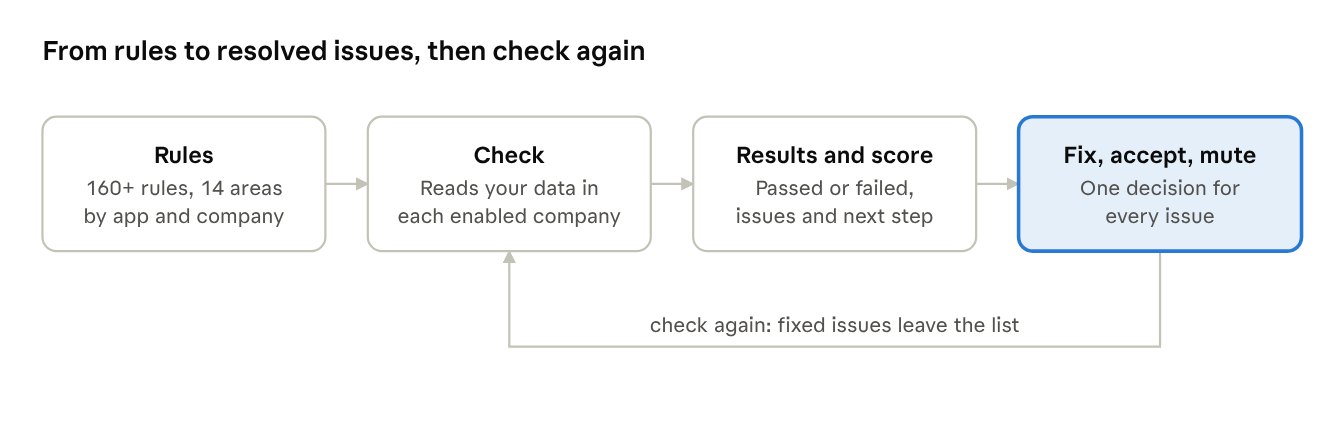
Rules. More than 160 rules in 14 areas, which run by app and by company.
Check. The check reads your data in each enabled company.
Results and score. Each rule passes or fails, and every issue comes with a next step.
Fix, accept or mute. Make one decision for every issue, then check again. Fixed issues leave the list.
The terms
Term | Meaning |
|---|---|
Rule | One test, with a permanent code such as FIN-ACC-NO-CATEGORY, a short description, a detailed explanation and a help link |
Area | The group a rule belongs to, for example Finance, Sales, Dimensions or Master Data |
Result | The outcome of one rule in one company: Passed, Failed, Skipped or Could Not Run |
Issue | One finding of a failed rule: the record, what is wrong and what to do |
Score | The share of rules that passed, as a percentage |
Severity
Every rule has a severity, which tells you how urgent its issues are.
Severity | What it means | Weight in the score |
|---|---|---|
Error | The reports are wrong, or the data refresh can stop | 3 |
Warning | The reports are incomplete | 1 |
Information | Worth knowing, and often intended | Not counted |
The score
The score is the share of rules that passed, out of the rules that ran. A rule with severity Error counts three times a rule with severity Warning. Skipped rules and rules that could not run are left out.
The score is rounded down, so 100% means that every rule passed. It is red while there are errors, yellow while there are only warnings, and green when there are none.
Which rules run
By app. A rule runs when one of its Power BI apps has a free trial or a subscription. The Manufacturing rules, for example, are skipped if you do not use Manufacturing Insights.
By company. Most rules run in each enabled company. A few rules check setup that all companies share; they run once, and their results are listed without a company name.
Muted rules are skipped in every company.
When the check runs
The check runs when you start it, and automatically at the moments when results are missing or out of date. It does not run on a fixed schedule, so the results are as recent as the last check; the date is always shown next to them.
When | What is checked | Where it runs |
|---|---|---|
You choose Check Data Quality | All rules, for the current company or for all enabled companies | The current company on screen, the other companies in the background |
You open the Insights Connector for Power BI page and a company has no results yet | All rules for that company | In the background, so the page opens at once |
After an update of the Connector | Only new and changed rules; all rules after a major version | In the background, the next time the page opens |
At the end of the free trial or subscription wizard | All rules for the current company, if you leave Check data quality now turned on | On screen, with the result in the wizard |
From assisted setup, Power BI: Data quality check | All rules for the current company | On screen |
Good to know:
The check only reads your data. It never changes a record in Business Central.
A check can take a few minutes in a large company.
Nothing runs during the installation or an upgrade of the Connector.
To check on a regular basis, for example before month-end reporting, choose Check Data Quality.
Review the results
Start on the Insights Connector for Power BI page in Business Central. It shows the totals, and every number opens the detail behind it.
Where | What it shows |
|---|---|
Data Quality tab | The overall score, the date of the last check, and the numbers of errors, warnings and information for all enabled companies together |
Companies part | For each company: the state of its check, its score, its errors and warnings, and when it was last checked |
Notification at the top of the page | The numbers of errors and warnings, and whether a check is still running, failed or is out of date. From it you can choose Show issues or Check again |
Data Quality Results | One line per rule and company: Passed, Failed, Skipped or Could Not Run, with the number of issues. Failed rules come first |
Data Quality Issues | One line per finding: company, severity, rule, what is wrong and what to do. Errors come first |
Data Quality Rules | The full list of rules, with area, severity, apps and whether a rule is muted |
On the Results and Issues pages, the Rule Details FactBox explains the selected rule: what it checks, what it reports, the effect in Power BI and when it makes sense to mute it. Learn More opens the help page of the rule.
Handle an issue: fix, accept or mute
Every issue ends in one of three ways. Fix it when the data is wrong, accept it when one record is right as it is, and mute the rule when it does not apply to your business.
Option | Use it when | What happens |
|---|---|---|
Fix | The data or setup is wrong | You correct the record. After the next check the issue leaves the list |
Accept Issue | One record is right as it is, for example two customers that share a name on purpose | The rule no longer reports that record and keeps checking all others |
Mute Rule | The rule does not apply to you, for example a budget rule in a company that does not budget | The rule is switched off in all companies and no longer counts in the score |
Work through the errors first, then the warnings. Information issues do not affect the score and can wait.
Fix an issue
Open Data Quality Issues and select the issue.
Read Corrective Action, which says what to do.
Choose Open Record to open the record, or the page to fix it on. A record in another company opens in a new browser tab.
Correct the data.
Choose Check Data Quality. Issues that are fixed leave the list.
Accept an issue
On Data Quality Issues, select one or more issues.
Choose Accept Issue.
The accepted records are listed on the Accepted Issues page, with who accepted them and when. To report a record again, select it there and choose Undo Accept.
Only an issue about a record can be accepted. An issue about something that is missing, such as no budget for the current year, is either fixed or its rule is muted.
Mute a rule
On Data Quality Issues, select an issue of the rule and choose Mute Rule. You can also select Muted on the Data Quality Rules page.
Confirm.
The issues of the rule leave the list at once, in all companies. Business Central records who muted the rule and when. To use the rule again, clear Muted on the Data Quality Rules page and run the check.
Ask for help
If you are not sure how to resolve an issue, choose Send Issues to Support on the Insights Connector for Power BI page. It downloads a file with all issues and opens an email to our support team; attach the file and send it.
For partners: use it in your implementation
The check gives you a repeatable data review for every Business Central project. Run it at the points below and use the issue list as your worklist with the customer.
Project stage | What to do | Why |
|---|---|---|
After data migration | Check all enabled companies and fix the errors first | Errors can stop the Power BI data refresh, and they are cheapest to fix before go-live |
During setup | Work through the Connector, Dimensions, Currencies and Financial Reporting rules | These rules confirm that the setup behind the reports is complete |
Before go-live | Review the warnings with the customer; fix, accept or mute each one | Every open issue has an owner and a decision before users see the reports |
At handover | Show the customer the Accepted Issues page and the muted rules | Both record who decided what and when, so the decisions are documented |
After go-live | Agree who runs the check and how often, for example before month-end reporting | New data brings new issues; a new version of the Connector can bring new rules |
Two things help in projects with several companies:
Some rules compare the enabled companies with each other, for example G/L account categories or dimension setup that differ between companies. They only give a full picture once all companies are enabled.
The Data Quality Issues page can be filtered by company, severity or rule, and opened in Excel to share with the customer.
Frequently asked questions
Who can run the check? Any user with the Connector's permission set (EKNPBIINSIGHTS).
How often should I run it? There is no fixed schedule. Run it before month-end reporting, after a data migration, and after larger changes to your setup.
Does the check change my data? No. It only reads your data and stores its own results.
Why is a rule Skipped? The rule is muted, or none of its apps has a free trial or a subscription. The result line says which.
What does Could Not Run mean? The rule raised an error, for example because the user has no permission to read a table. The result line shows the reason. The rule does not count in the score. If it keeps happening, send the issues to support.
Why does a company show Not checked or Outdated? The company has no results yet, or its results are from an older version of the Connector. Other companies are checked in the background, which needs permission to schedule tasks; a delegated administrator, for example, does not have it. Open the company and choose Check Data Quality there.
A rule found thousands of issues. Where are they all? Up to 1,000 issues are stored per rule and company. Fix the listed issues and run the check again to see the rest. If almost every record fails, ask whether the rule applies to you and consider muting it.
Do I need a score of 100%? No. Aim for no errors, and make a decision on each warning. A warning you have reviewed and accepted or muted no longer lowers the score.
Can I turn off the notification? Yes. Choose Don't show again on the notification. You can turn it on again under My Notifications.
I muted a rule by mistake. How do I get it back? Clear Muted on the Data Quality Rules page and run the check again.
Next steps
See every rule. The Data Quality Rules page lists all rules by area, with severity, apps, the effect in Power BI and how to fix each one.
Try it on your own data. Start a free trial of any Business Central Insights app; the wizard offers the data quality check as its last step.
Need help? Choose Send Issues to Support in Business Central, or contact our support team.