Accessing & Using the Customer Portal

In the Customer Portal you pay open invoices, manage your payment method and billing details, and download your invoices. The portal is a secure page hosted by Stripe, our payment provider.
Open the Customer Portal from Business Central
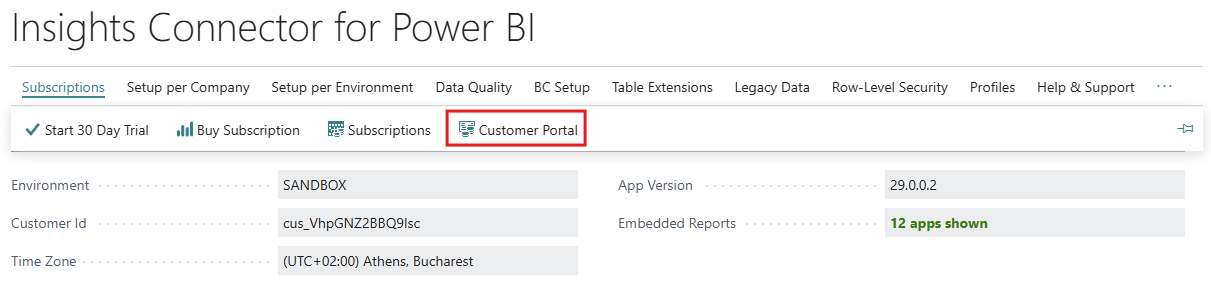
In Business Central, open the Insights Connector for Power BI page.
Choose Subscriptions > Customer Portal.
A message shows the billing email you sign in with. Choose Yes to continue.
The portal opens in a new browser tab with your billing email filled in. Stripe sends a sign-in link to that address, so you need access to its inbox.
The Customer Portal action is also on the Subscriptions page.
Note: The portal is available after you have started a free trial or bought a subscription. In a sandbox environment, always use the action: it opens the test portal that belongs to sandbox subscriptions.
Open the Customer Portal with a direct link
If you don't have access to Business Central, for example as the billing contact of your company, use this link:
Customer Portal: https://billing.stripe.com/p/login/eVq4gydCH4CD9y1f5naEE00
Enter the billing email of your subscription. Stripe sends a sign-in link to that address.
What You Can Do in the Customer Portal
Pay open invoices
Complete a payment that failed or is still open.Update your payment method
Add, remove, or change your card or payment details.Update your billing information
Edit your contact details, including name, address, and phone number.Download your invoices
Access and download invoice copies for your records.
Billing Email
You sign in with the billing email associated with your subscription. If you need to change your billing email address, please reach out to us and our team will assist you.
If you have any issues accessing the portal or updating your details, feel free to contact our support team. We're here to help!